
Wrapping Text
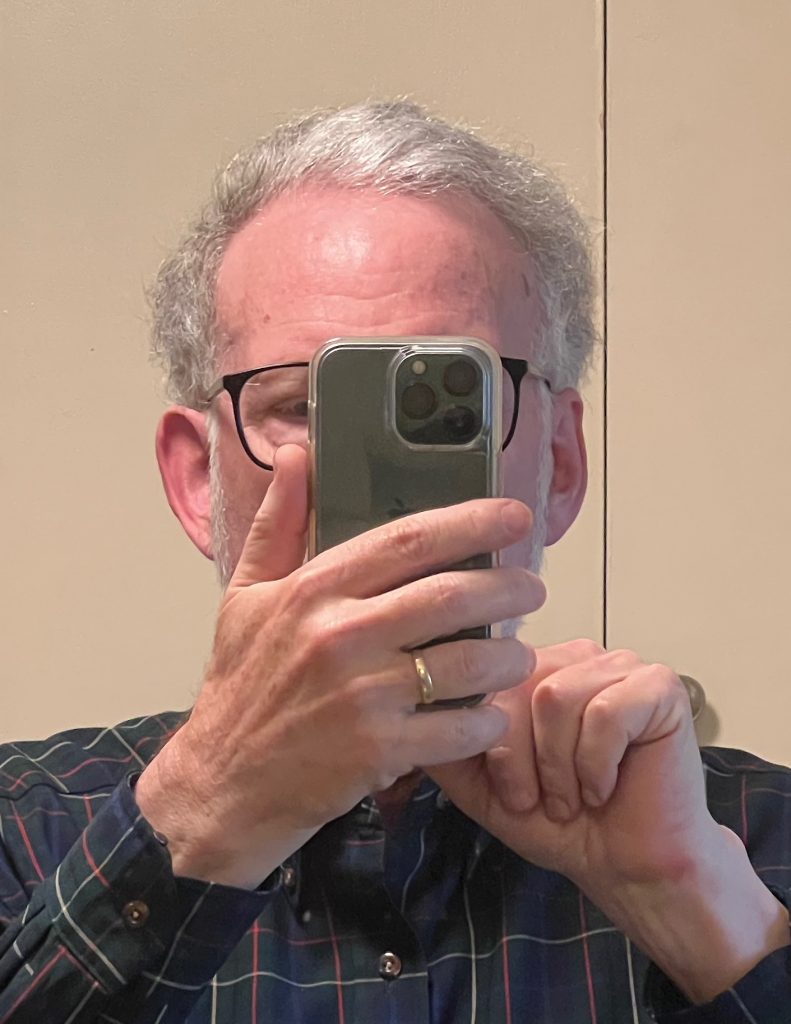
I start out this process by inserting an Image Block. I then use the pop-up menu to select left-alignment. My text gets added to a text block below the photograph. To add my text paragraph, I am going to click on the blue block inserter button in the upper left-hand corner of the screen. This drops down the list of options, from which I will select paragraph. The paragraph will open up below the photograph, allowing me to start typing. In this case, I am going to copy text from another location, I go into it across the bottom of my screen. I will select and copy the text (using [control] – C), go back to my WordPress page, and paste the text into the paragraph block using [control]-V. Hitting [Enter] will complete this block and move my cursor to the next one. I can adjust the size of the image using the round handles on the botom and left of the photo.
This is a Quote Block. Life Is Just One Damn Thing After Another
Elbert Hubbard
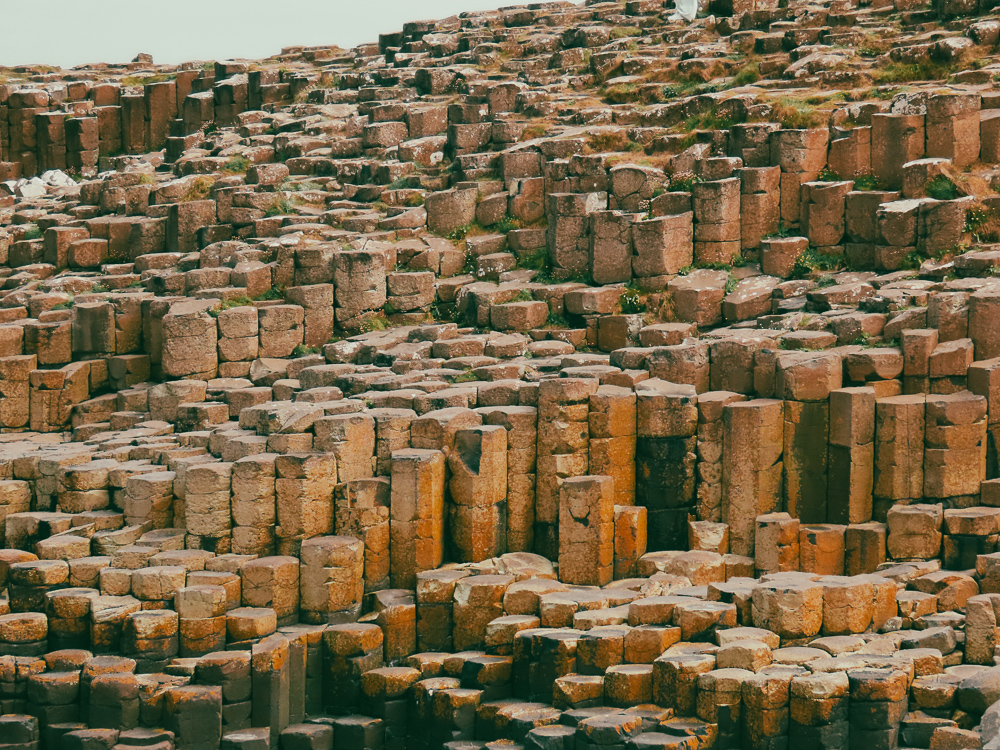
Media and text in a full height container
This is one of the Patterns from the full menu on the left. It contains an image, which I have replaced here with one from my gallery, some text (you’re reading it) and an action button.
There does seem to be some flexibility. In a moment I’m going to check and see if I can adjust the size of the image, and what the repercussions of that action will be. As to the button, I will try to find a link to include and add it to the button.
I was in fact able to change the size of the image, though I noticed that there was only one handle visibile as I was working with it. I don’t know if this isw a anomaly or a feature. Time, of course will tell.
I am noticing that as I continue to add text, the image seems to be adjusting, and keeping the text and the button to the right of the image. I suspect this is the intended behavior, and it also suggest that using this block is diferent than using a text block and wrapping next to an image block.